|
|
| (17 intermediate revisions by the same user not shown) |
| Line 1: |
Line 1: |
| ==== Windows OpenVPN Client ==== | | === You will find the manual on the CIN Wiki === |
| Choose the setups for your Windows
| |
|
| |
| * for Windows 7/8/10 64bit -> windows-install-x64.exe
| |
| * for Windows 7/8/10 32bit -> windows-install-x86.exe
| |
|
| |
|
| https://cin-118-245.medizin.uni-tuebingen.de:8080/index.php/s/h5xvw7H0SqYkn3t | | [https://cin-11.medizin.uni-tuebingen.de:62443/mediawiki/cinwiki/index.php/CIN_VPN CIN VPN - CIN-Wiki (uni-tuebingen.de)] |
|
| |
|
| Install the client with double click. After installation of the client, you can start your client and you will see the icon of your openvpn in the taskbar.
| | === How I connect to my computer === |
| <pre>
| |
| Please be sure you run the OpenVPN Client as Administrator !!!
| |
| On Windows you can right click the OpenVPN-GUI Icon and select "Run as Administrator"
| |
| </pre>
| |
| With a right-click on the openvpn-gui icon you can click on connect for connecting to the vpn server.
| |
| | |
| ==== Linux Debian/Ubuntu OpenVPN Client ====
| |
| You need to download the configurations files (openvpn-config.zip) at the end of this tutorial
| |
| for debian like Linux open a terminal and type:
| |
| | |
| <pre>
| |
| apt-get update
| |
| apt-get install openvpn
| |
| openvpn --config /your/path/firewall-TCP-1194-config.ovpn --ca /your/path/firewall-TCP-1194-ca.crt*
| |
| </pre>
| |
| Donwload the config files:
| |
| https://cin-118-245.medizin.uni-tuebingen.de:8080/index.php/s/h5xvw7H0SqYkn3t
| |
| | |
| ==== Mac OSX Tunnelblick Client ====
| |
| For downloading a Client for iOS/Mac you can use Tunnelblick:<br>
| |
| https://code.google.com/p/tunnelblick/ <br>
| |
| Download the configuration files for Mac Tunnelblick ([https://cin-118-245.medizin.uni-tuebingen.de:8080/index.php/s/h5xvw7H0SqYkn3t mac-config-files.visc.zip]).<br>
| |
| Please extract the configuration to your desktop and doubleclick the Viscosity.visc file.
| |
| | |
| ==== How I connect to my computer ====
| |
| If you want access to your office computer via Remote Desktop, then we must activate it for you.<br> | | If you want access to your office computer via Remote Desktop, then we must activate it for you.<br> |
| Send your computer name to [mailto:support-mp@medizin.uni-tuebingen.de support-mp@medizin.uni-tuebingen.de] (you find your computer name on a red label) | | Send your computer name to [mailto:support-mp@medizin.uni-tuebingen.de support-mp@medizin.uni-tuebingen.de] (you find your computer name on a red label) |
You will find the manual on the CIN Wiki
CIN VPN - CIN-Wiki (uni-tuebingen.de)
How I connect to my computer
If you want access to your office computer via Remote Desktop, then we must activate it for you.
Send your computer name to support-mp@medizin.uni-tuebingen.de (you find your computer name on a red label)
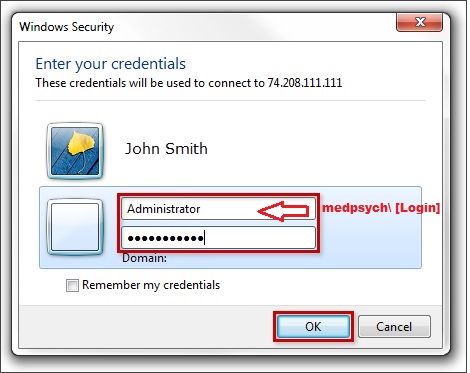
- start remote desktop

- type your computer name in this field
- click connect
- you can login with your account
- Login: [login]
- Password: [your password]